Digital Microscope Software & Driver Download Guide
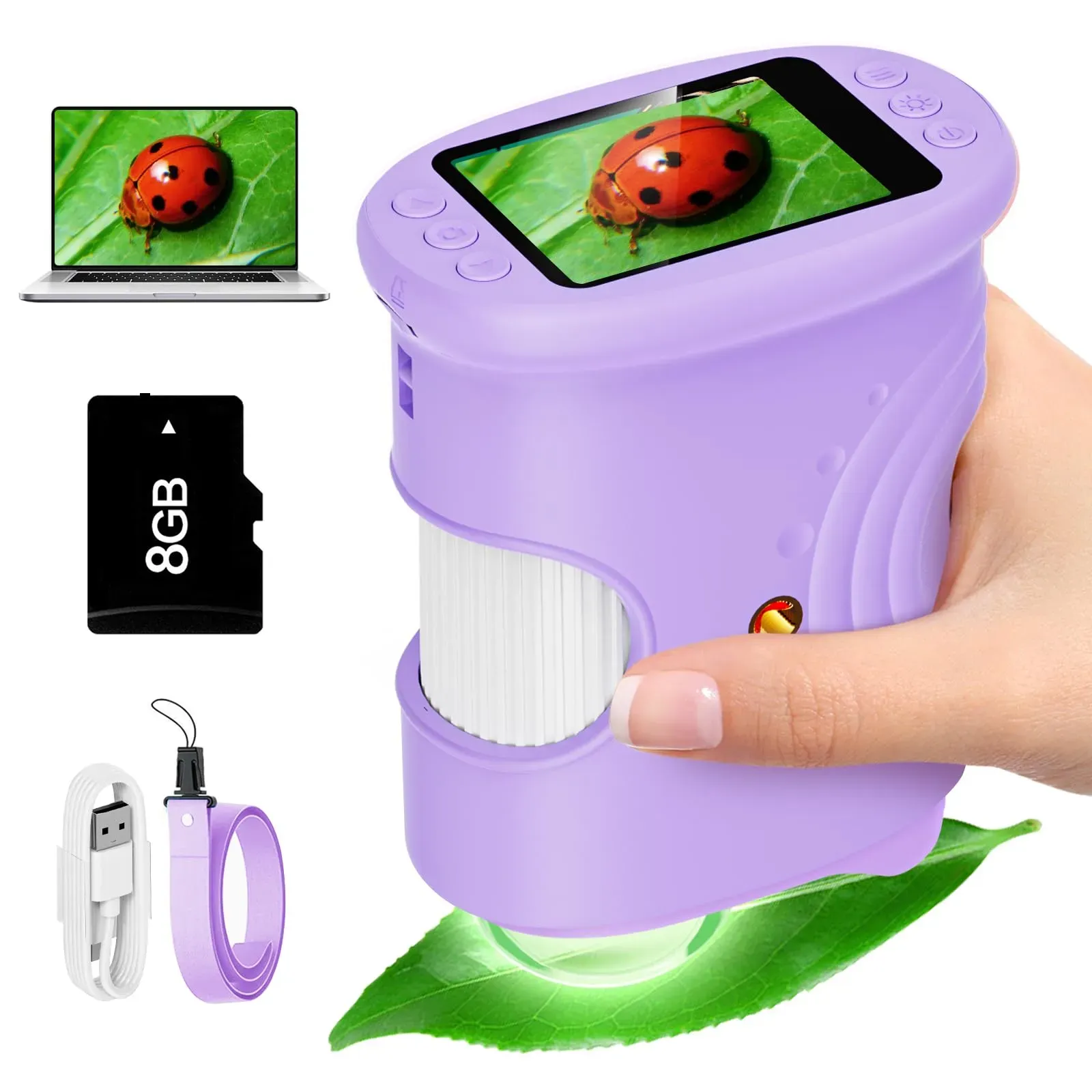
Digital microscope software is the program that puts your microscope's live view on a computer screen and lets you capture photos and video. The good news for Bebanghan owners: the microscope is a standard UVC (USB Video Class) device, so on Windows 10 and Windows 11 it is recognised like a webcam — for basic viewing there is usually no separate driver to download at all. This guide covers the correct setup order, then the fixes for the classic "plugged in but nothing happens" moments.
TL;DR: connect over USB, open the Windows Camera app, and select the microscope as the camera. If the screen stays dark, it is almost always camera permissions, a busy USB port or the wrong app selected — not a faulty unit. Photos already on the device transfer over the same cable like files from any camera.
Do you need extra software at all?
Often not. If your goal is live viewing and snapshots, the built-in Camera app on Windows 10/11 does the job the day the box is opened. Dedicated capture programs only become worth installing when you want more control — longer recordings, resolution settings, annotation or comparison views for teaching.
- Built-in apps are enough for: checking the unit powers and focuses, viewing coins, leaves or circuit boards on a bigger screen, quick stills.
- Dedicated software helps with: longer demonstration videos, capture settings, annotating images for reports or family project logs.
- A caution on "measurement" tools: on-screen rulers in consumer apps are not calibrated metrology; treat measurements as estimates unless the whole setup has been verified against a known scale.
Windows 10 and 11 setup, in order
- Charge and power on the microscope; connect the USB data cable to the computer.
- Select the right mode on the device if prompted — camera/PC mode for live viewing, storage mode for copying saved photos.
- Open the Camera app (Start → Camera) and use the switch-camera control if your machine also has a webcam.
- Check permissions if the image is black: Settings → Privacy & security → Camera → allow camera access, and allow desktop apps to use the camera.
- Try another USB port — hubs and front-panel ports are the usual culprits; a rear motherboard port on a desktop is the most reliable.
- Windows Update, not driver sites: if Windows genuinely lacks the UVC component, Device Manager → Cameras → right-click → Update driver fetches it. Avoid third-party "driver download" sites entirely — they are a malware risk and never necessary for a UVC device.
"Digital microscope not recognised by PC" — the checklist
- Wrong app has the camera: close video-call software (Teams, Zoom, browser tabs with camera access) — only one program can hold the camera at a time.
- Charge-only cable: if the device charges but never appears, swap the lead — some USB-C cables carry power only. Use the supplied data cable.
- Device asleep: screens time out to save the 700mAh battery; wake the unit, then re-select it in the app.
- Permissions reset after a Windows update: re-check the Privacy & security → Camera toggles — feature updates occasionally switch them off.
- Still nothing on any port and any cable: test on another computer to isolate the fault; if the unit fails on both, use the 30-day returns window or UK warranty support rather than exotic driver surgery.
Getting your photos off the microscope
Photos and videos captured on the built-in screen transfer over the same USB cable: connect in storage mode and the device appears in File Explorer like a camera or USB stick — copy the files across, then file them properly. A folder-per-date or folder-per-subject habit ("2026-07 pond water", "1897 shilling obverse") keeps a family project log or coin condition archive usable; collectors filing by year and grade will find the workflow half of the job in our microscope camera guide.
What about macOS, Chromebooks and phones?
Bebanghan states support for Windows 10 and 11 over USB, and that is what this guide stands behind. UVC is an open standard and other systems often detect generic UVC cameras, but behaviour varies by model and OS version, so do not buy on that assumption — the built-in screen means the microscope is fully usable with no computer at all, and Windows handles the transfer-and-archive side when you need it.
Keeping the picture sharp after setup
If live video looks foggy after a few weeks, it is usually the lens, not the software: fingerprints and dust soften the image exactly like a smudged phone camera. Power off and use a dry microfibre cloth or an air blower — no solvents, no abrasive wipes, no pressure on the lens. If image quality changes suddenly mid-session, check the USB connection and lighting before reinstalling anything; software is rarely the culprit twice.
Frequently Asked Questions
Why does the microscope's own screen work but nothing shows on my PC?
The unit is fine — the link is. Check the device is in camera/PC mode rather than storage mode, that Windows camera permissions are on, and that no video-call app is holding the camera. One of those three explains almost every dark screen.
Do I need to download a driver for a Bebanghan microscope?
No. It is a UVC device, so Windows 10 and 11 recognise it like a webcam. If a component is genuinely missing, Device Manager's Update driver fetches it — never use third-party driver-download sites.
How do I get my saved photos onto the computer?
Connect over USB in storage mode and the microscope appears in File Explorer like a camera. Copy the files across and sort them into dated folders as you go — future you will be grateful.
Does it work with a Mac, Chromebook or phone?
Official support is Windows 10 and 11 over USB. UVC is an open standard and other systems often detect such cameras, but behaviour varies by model and OS version — and the built-in screen means no computer is required at all.
How do I clean the lens without damaging it?
Power off, then a dry microfibre cloth or an air blower — no solvents, no abrasive wipes, no pressure. A smudged lens is behind most 'image gone blurry' complaints, not the software.
Ready to try Bebanghan?
Shop Now — £32.00